To let customers log in to Shopify with a phone number and an SMS code, you connect your own identity provider (IdP) using OpenID Connect, which is available on Shopify Plus. Shopify's default login sends a one-time code to the customer's email address. Phone login, the signup form, consent collection and ERP matching all live in your login service; Shopify receives a signed identity document (an ID token) from that service and recognizes the customer by the email and the permanent ID inside it.
At Nodus Works we built this setup for a retail brand that moved to Shopify Plus, runs a network of physical stores and has a loyalty program, and we ran it end to end on the Plus store. The brand's customers had been identified by phone number at the till for years, so email-only login left a large share of them at the door.
The move from legacy customer accounts to the new system itself, meaning passwords going away and Liquid account templates being retired, is covered in our Shopify legacy customer accounts migration guide. The steps below build on a store that has already completed that migration: replacing email-code login with phone and SMS code, and collecting signup and consent on your own screen.
How does Shopify's default login differ from your own identity provider?
With the default login, Shopify authenticates the customer: they enter an email, type the code they receive and the session opens. When you connect your own identity provider, Shopify stays at the door but hands the identity check to you. It redirects the customer to your login service, your service verifies the person and returns a signed document to Shopify. Shopify checks the signature and lets in the customer named in it.
According to Shopify's customer authentication documentation, Shopify uses the email and sub claims in the token to find the customer, creates the customer if needed and opens the session. The same session also works in checkout.
Do not underestimate the last row. If the login service is down, customers cannot reach their account or sign in at checkout, so monitoring, key storage and SMS cost tracking are part of the project.
What do you need before connecting your own identity provider?
Five things should be ready before setup starts:
Online Store 2.0 themes and headless stores
The login page runs in your login service, outside the theme. On an Online Store 2.0 theme (Dawn, Horizon or a custom theme) no theme code changes are needed for login: as long as the theme's "Log in" and "Account" links point to new customer accounts, Shopify redirects the customer to your service. The old customers/login.liquid templates are not part of this flow. A headless storefront uses the same identity provider through the Customer Account API; to keep the customer signed in when moving to checkout, checkout authentication is set up as well.
How do you build the Shopify identity of a customer who logs in by phone?
The most important decision in this project is identity design, not code. Shopify resolves every customer by email, so we set three rules to connect a phone-based login to the right Shopify account.
sub is the permanent customer ID. The sub value in the token is the real key of the account. If you put a phone number or an email there, Shopify will treat the customer as someone new as soon as they change their number or address. The right value is the unchanging customer code in your ERP or CRM.
Every customer has an email in the token. Customers without a real email are asked for one on the signup form. If the form is turned off, or the customer record cannot be reached at that moment, a non-routable address derived from the phone number is used (for example 905550000000@phone.yourstore.com). Because the phone was verified by SMS code, that address counts as verified. Order emails cannot reach it, so it is a safety net for the transition, not a permanent answer.
Existing customers are found, not recreated. Once the code is verified, the service looks the customer up first by the Shopify customer ID returned by the ERP, then by email, then by phone. The email of the customer it finds goes into the token. That way Shopify opens the existing account with its order history instead of creating a new one.
Here is the ID token of a login on our test store (identifiers anonymized):
{
  "iss": "https://login.yourstore.com",
  "aud": "<client id used by Shopify>",
  "sub": "erp:1000482917",
  "email": "ayse.yilmaz@example.com",
  "email_verified": true,
  "phone_number": "+905550000000",
  "given_name": "Ayşe",
  "family_name": "Yılmaz",
  "nonce": "<value sent by Shopify>",
  "iat": 1793799284,
  "exp": 1793802884
}
iss shows who signed the token and aud who it was signed for. The gap between iat and exp is one hour, after which the token is no longer valid.
Shopify's claim import writes some token fields to the customer record by itself. Knowing what lands where tells you which data needs a separate path:
How does the SMS OTP login flow work step by step?
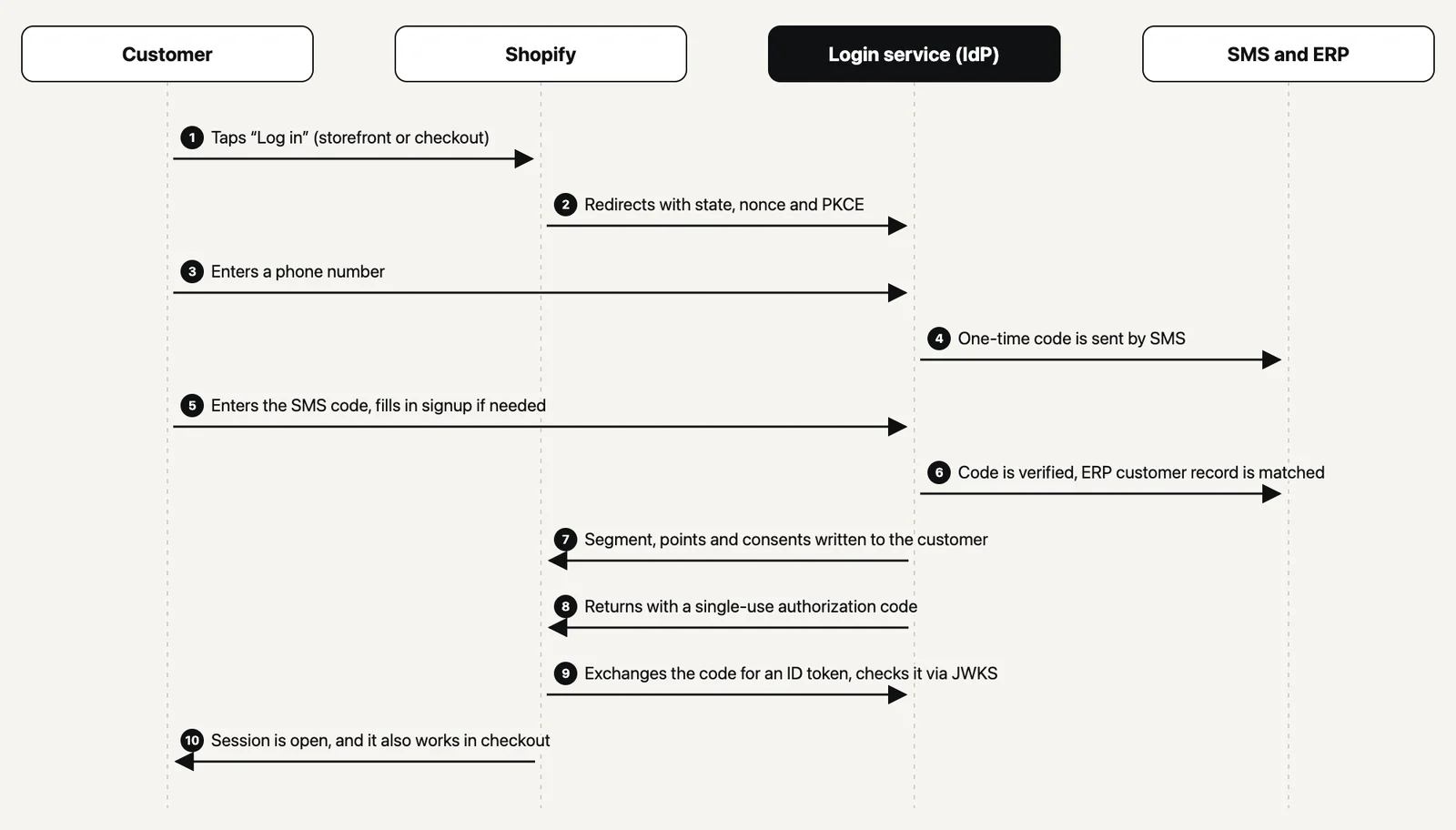
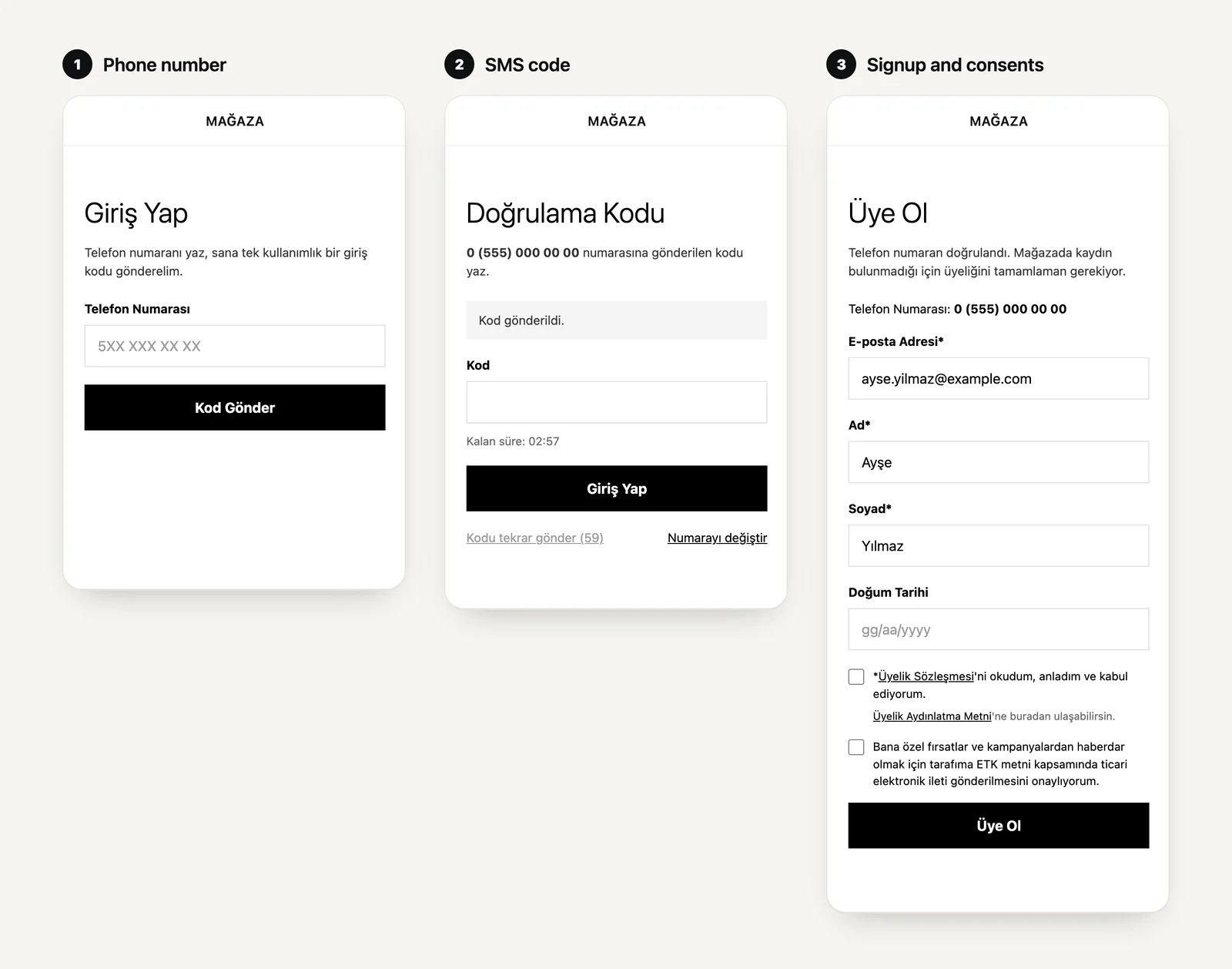
For a development team to connect the service to Shopify, it needs the following. We tested each one against Shopify on our own service:
How do you protect the SMS code from abuse?
The login page is public, so SMS delivery is a cost line that can be attacked. Automated requests for codes to thousands of numbers (SMS pumping) cost money and hurt your sender reputation with operators. These are the limits we set:
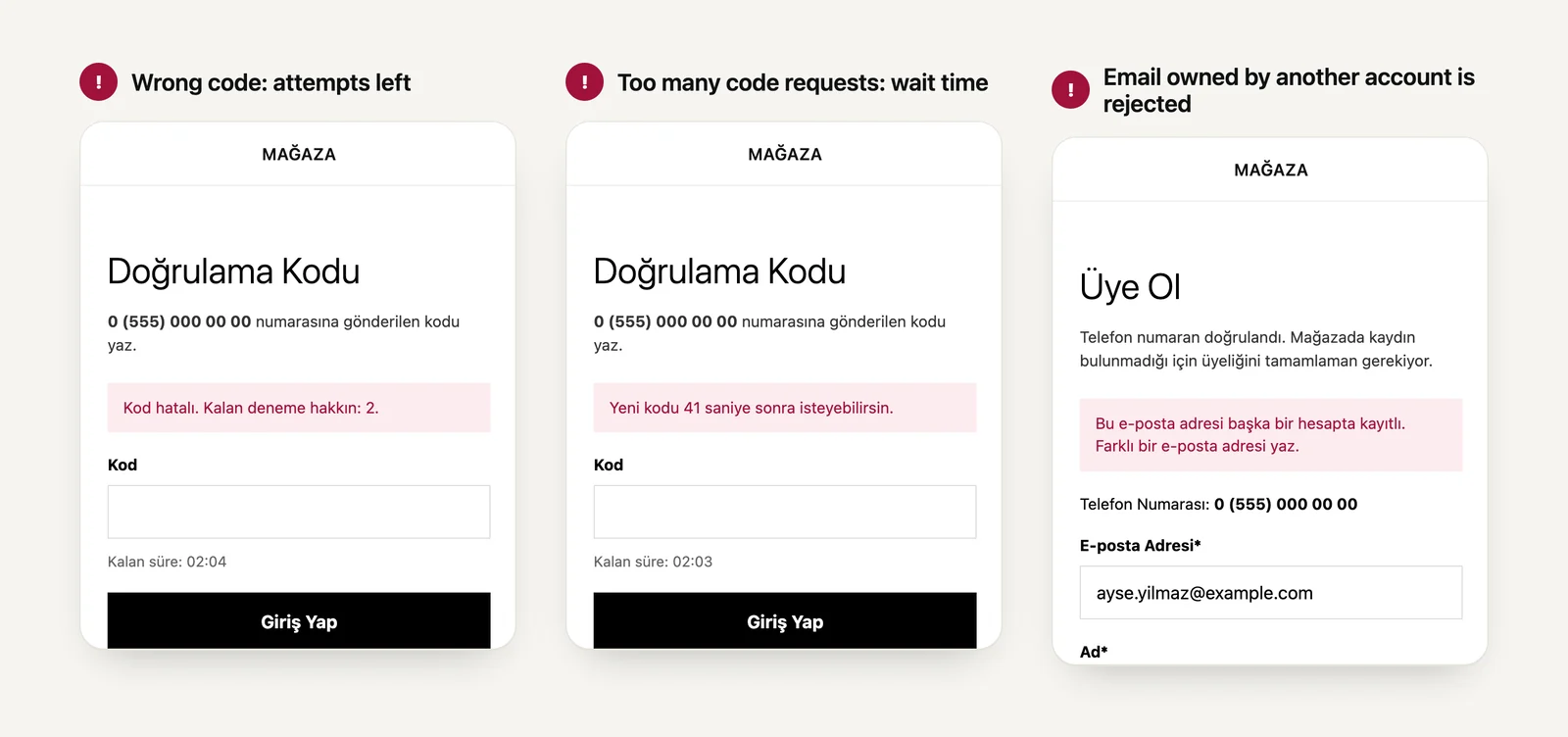
Two small settings make a real difference to usability. With autocomplete="one-time-code" and a numeric keyboard on the code field, iOS and Android suggest the incoming SMS code above the keyboard, so the customer never types it. The phone field uses the tel type with a local number pattern as placeholder. The login page is closed to search engines (noindex).
How do you build a signup form that meets KVKK and marketing consent rules?
The store in this project operates in Turkey, where personal data is governed by KVKK (Turkey's data protection law, close to GDPR in structure) and commercial SMS and email by the Electronic Commerce Law (ETK). After the phone is verified, if there is no usable Shopify record, or the record is missing a name or a real email, the customer is not sent back to Shopify and a signup form opens on the same page. No password is asked for, and the verified phone number is only displayed. The session does not open until the form is submitted.

The principles we followed when building the form:
.
How do segment, loyalty points and ERP data reach Shopify at login?
Claim import carries name, phone, address and tags, but not metafields. The brand's campaign segments and loyalty points are read from customer metafields, so this data had to be written separately at login. After the code is verified and before sending the customer back to Shopify, the service writes the ERP segment and points to the customer record through the Shopify Admin API. By the time the session opens the fields are already filled, and segment-based discounts work from the first page.
Passing the segment as customer tags through claim import is also possible. We chose the Admin API because the campaign setup reads metafields and tags are written by other processes too.
The key rule at this step is that login must not depend on the ERP. If the ERP or Shopify returns an error or times out, login continues and the last known values stay on the customer record. We set a one-second timeout on the segment lookup, so a slow ERP response never keeps the customer waiting.
Points can also be spent in checkout. Before payment, a checkout UI extension sends a secure request to the login service and the balance is read again from the ERP, so points spent in a physical store in the same minute cannot be used a second time online. The request is signed with the session token Shopify gives the extension, and the ERP is queried at most once every 20 seconds per customer. For showing the points balance on the account page, see our Customer Account UI Extension guide; for the loyalty setup itself, see our Shopify customer loyalty program guide. If the ERP is a system like Nebim, the overall customer and order flow is described on our Shopify Nebim integration page.
How do you connect the identity provider in Shopify admin?
Once the login service is ready, the connection is made in Shopify admin in five steps (Shopify Help Center steps):
) from the start and never activate it with a temporary server address.
Before activating, try each of these scenarios on a test store:
Five problems we hit in the field and how we solved them
A second account created for the same customer
Problem An existing customer logs in by phone and lands in an empty account with no order history.
Cause When the phone-derived address goes into the token, Shopify does not recognize the old account registered with a real email and creates a new customer.
Solution Before writing the token, the service looks the customer up by Shopify ID, email and phone, in that order, and puts the email of the customer it finds into the token.
Attempts to enter an account with someone else's email
Problem The email typed on the signup form could become a door into another customer's account.
Cause Shopify finds the customer by the email in the token, so an unverified email opens someone else's session.
Solution If the email on the form belongs to another customer, nothing is saved and the customer is asked for a different address.
Login stalling when the ERP slows down
Problem When the ERP is slow to answer with segment or points, the customer waits on the code screen.
Cause If login is sequenced to wait for the ERP, every ERP slowdown turns into a login failure.
Solution ERP calls run with short timeouts; on an error or delay, login completes, the last known values remain and the event is logged.
A login page that looks detached from the store
Problem A plain login page on a separate domain feels foreign to customers and costs trust.
Cause The login service is not part of the theme, so it does not carry the store's header, footer and styles on its own.
Solution The service reads the store's header, footer and stylesheet from the live site every 10 minutes, strips scripts and places them on the login page. If the store cannot be reached, the page opens as a plain form and login still works.
A locked connection when the domain needs to change
Problem A provider activated with the test server's address cannot be edited when it is time to move to the permanent domain.
Cause After the first customer login, Shopify locks the discovery URL, client ID and secret fields.
Solution A second provider is added for the new address and the switch is planned. On new projects we publish the service on its permanent subdomain from the start.
Frequently Asked Questions
Yes. Connecting your own identity provider is limited to Shopify Plus stores. Other plans use Shopify's email-code login.
Not for the login page. Login runs in the identity provider outside the theme; the theme's account link only needs to point to new customer accounts. If the theme still uses legacy Liquid account templates, migrate first.
The signup form asks for a real email. If the form is turned off, a non-routable address derived from the phone number is used; it is only a temporary safety net because it cannot receive order emails.
Not if the setup is done right. The login service looks the customer up by Shopify ID, email and phone and writes the email of the customer it finds into the token; Shopify opens the existing account with its order history.
For new builds, yes. Shopify recommends connecting a third-party identity provider for new integrations; Multipass is no longer available to new stores and does not support claim import.
The time of terms acceptance and the status and date of marketing consent. Phone numbers are masked in logs, SMS codes are deleted when they expire, and the hosting location of the service appears in the privacy notice.
Yes. Login in checkout is routed to the same identity provider, and the session is shared across the storefront, the account page and checkout.
Where should you start?
A phone login project combines three pieces of work: an OpenID Connect compliant login service, a signup flow that meets KVKK and marketing consent rules, and a data bridge between the ERP and Shopify that runs at login. Each can be built on its own, but if the customer identity decision (sub, email and the duplicate account rule) is not made correctly at the start, fixing it later is the most expensive part.
We deliver this setup as part of our Shopify integration solutions and custom app development service. Tell us about your customer base and your ERP, and we will work out together how phone login should be built for your store: contact Nodus Works.