The Shopify Google Analytics link sends page views, product views, add-to-cart actions and purchases from your store to GA4. In the Shopify admin, you install the Google & YouTube app, connect your Google account and select your GA4 property, with no code needed. A test visit in DebugView confirms the data flow and the view_item, add_to_cart, begin_checkout and purchase events.
At Nodus Works, we often see the same picture in analytics setup projects: the store owner has connected GA4 and can see traffic numbers, but has no idea which product was added to the cart or at which step it was abandoned. The reason is usually that GA4 was set up only at page view level and the Enhanced Ecommerce events (product view, add to cart, purchase) were never activated. Set up correctly, the Shopify Google Analytics link answers not only "how many people visited?" but also "which product page isn't converting?" In this guide we explain how to connect GA4 to Shopify, what Enhanced Ecommerce events do, how a Google Tag Manager setup differs from the native setup and how GA4 works together with Google Merchant Center.
What Is the Shopify GA4 Link?
The Shopify GA4 link is the technical integration that sends visitor behavior in your store (page views, product views, add to cart, purchases) to Google Analytics 4. The link can be set up at two different depths: a basic setup that only collects page view data, or an Enhanced Ecommerce setup that also tracks product-level behavior. The difference is not a minor technical detail: the basic setup only tells you "how many visitors came", whereas Enhanced Ecommerce answers "which product page is losing visitors?"
How Do You Set Up the Shopify GA4 Link?
Shopify accepts the GA4 link directly from the admin. You don't need to write any separate code: you set up the basic link by connecting your Google account through the Google & YouTube app and selecting your GA4 property.

- Create a new GA4 property in your Google Analytics account and note down the property's measurement ID (the code starting with G-).
- Install the Google & YouTube app in your Shopify admin, connect your Google account and select your GA4 property.
- Once setup is complete, make a test visit to your store and use the "DebugView" screen in GA4 to confirm that data is flowing in real time.
- Check whether the Enhanced Ecommerce events (explained in detail below) are being collected automatically. Shopify's native integration usually sends these events automatically, but on customized themes they sometimes fire incompletely.
Critical note: Connecting a GA4 property doesn't mean GA4 is working; it only means the link has been set up. Don't consider the setup "done" until you have confirmed with a test visit, through DebugView or the Realtime report, that it is actually collecting data.
GA4 Enhanced Ecommerce: The Data That Really Matters
GA4's ecommerce events (the setup known as 'Enhanced Ecommerce' in the Universal Analytics era) are the group of events that track the purchase journey on an ecommerce site step by step. The core events are: view_item (when a product page is viewed), add_to_cart (when a product is added to the cart), begin_checkout (when the checkout step starts) and purchase (when the order is completed). When you put this chain of four events side by side, you can see how many visitors viewed a product, how many added it to the cart, how many moved on to checkout and how many bought; in other words, exactly where your funnel narrows.
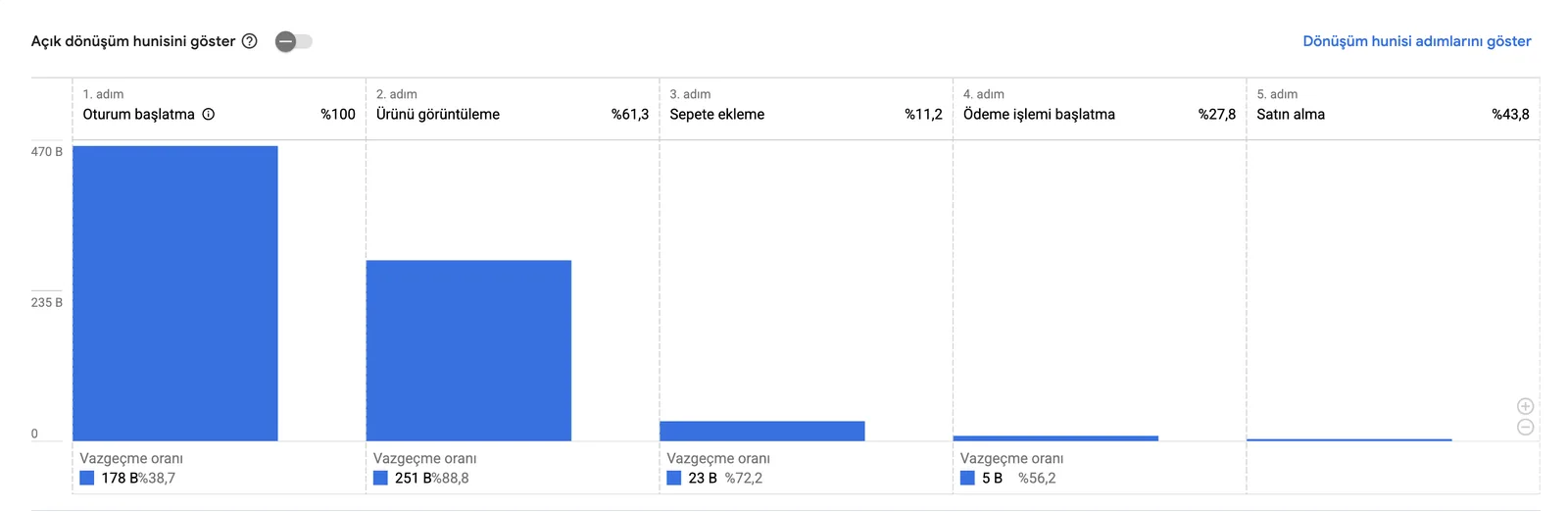
If you see a large drop between add_to_cart and begin_checkout in this chain of events, the problem lies not on the product page but on the cart page; if the drop is between begin_checkout and purchase, the problem is in the checkout flow. Without this event data, a store owner can say "my conversion rate is low" but will never know why; Enhanced Ecommerce removes that uncertainty.
When Should You Choose a Google Tag Manager Setup over the Native Setup?
The table below compares the two setup approaches according to when you should choose each one.
Shopify's native GA4 integration is enough for most stores, but if you want to manage several tracking tags (GA4, Meta Pixel, TikTok Pixel, the Google Ads conversion tag) in one place, Google Tag Manager (GTM) offers a better structure. Instead of adding each tag to your Shopify theme separately, GTM lets you manage all tags through a single container. This reduces tag clutter, especially in stores that use several ad platforms. We cover GTM setup and its Shopify-specific limitations (including the script rules that changed after Checkout Extensibility) in detail in our Shopify Google Tag Manager link guide.
The Link Between GA4 and Google Merchant Center
GA4 doesn't work in isolation. If you run Shopping or Performance Max campaigns in Google Ads, the source these campaigns pull product data from is Google Merchant Center (GMC). Conversion data in GA4 and the product feed in GMC depend on each other: a product that isn't approved or is disapproved in GMC never appears in a Shopping campaign, so GA4 never records any ad-driven conversion data for that product. When a store owner looks at GA4 and says "my Shopping campaign isn't bringing in any sales", the source of the problem is usually not the GA4 setup but a product disapproved in GMC. We cover GMC feed setup and the most common disapproval reasons in detail in our Shopify Google Shopping and Merchant Center integration guide.
Custom Pixel Setup after Checkout Extensibility
Since Shopify's Checkout Extensibility update, the way custom event code is added to the checkout has changed: scripts are no longer added directly to the theme but are managed through Shopify's Custom Pixel framework. Because GA4's purchase event fires exactly at this post-checkout step, you need to check separately that this event is coming through correctly if you have a customized checkout flow. We explain the technical details of Custom Pixel setup in our Shopify custom pixel integrations guide.

A risk to avoid: Don't leave an old purchase event code written before the Checkout Extensibility update unchanged. Scripts added the old way can silently stop working in the new checkout flow. When that happens, the GA4 dashboard looks error-free but no purchase data arrives at all, and the problem is only noticed weeks later.
Reading GA4 Data Together with Google Ads
GA4 setup usually comes up at the same time as Google Ads campaigns, because both are connected through the same "Google & YouTube" sales channel app. Enhanced Ecommerce data in GA4 is the foundation of conversion tracking in Google Ads. If GA4 events aren't set up correctly, the Google Ads algorithm can't learn which click turned into a sale, and bid optimization becomes guesswork. We walk through the Google Ads link and the GMC feed approval process step by step in our Shopify Google Ads link guide. If you want to see the real ROAS of your Meta, TikTok and Google ads on one screen, take a look at Peakmerce, our ad analytics app.
How Nodus Works Helps with GA4 Setup
Rather than saying "we make your integration process easier", let us explain concretely what we do. In a GA4 setup project, we first audit the existing event structure in DebugView and identify which Enhanced Ecommerce events are missing or firing incorrectly. We then add the missing events through the Custom Pixel framework, check that your GMC feed and your GA4 conversion data are consistent, and finally turn this data into a regular report as part of our SEO and performance reporting service. If you want to connect your GA4 data to campaign optimization, our Google Ads management service uses this GA4 data directly; if you want to turn event data into a higher conversion rate, our conversion optimization service does the same.
FAQ
Does adding GA4 to Shopify cost anything? No. GA4 itself is free, and Shopify's native integration doesn't require any extra fee either. If you choose to use additional tools such as GTM, the setup becomes more complex, not more expensive.
Are GA4 and Enhanced Ecommerce the same thing? No. GA4 is the general analytics platform; Enhanced Ecommerce is the group of events within that platform that tracks product-level behavior (views, add to cart, purchases). Even if GA4 is installed, Enhanced Ecommerce needs to be verified separately.
How can I tell whether my GA4 setup is working correctly? Make a test visit and check the DebugView or Realtime report in GA4 to see whether events (view_item, add_to_cart, purchase) arrive in real time. The fact that a GA4 property is connected doesn't by itself mean data is being collected correctly.
Do I need GTM, or is the native setup enough? If you have a single tracking tag (GA4 only), the native setup is enough. If you manage pixels from several ad platforms at the same time, GTM lets you manage all tags from one panel.
GA4 shows no conversions from my Shopping campaign. What could be wrong? The problem is usually not in the GA4 setup but in the product feed in Google Merchant Center; a disapproved or unapproved product never appears in a Shopping campaign, so no conversion data is created.
Conclusion
The Shopify Google Analytics link is more than connecting a GA4 property. Verifying that Enhanced Ecommerce events fire correctly, centralizing tag management with GTM where needed and connecting GA4 data to GMC and Google Ads are where the setup actually delivers value. If any of these steps is missing, the store owner still can't tell at which step visitors are being lost, even if the GA4 dashboard looks full.
If you'd like your GA4 setup, Enhanced Ecommerce events and regular reporting built end to end, you can contact our team about our SEO and performance reporting service.