You link Shopify to Google Ads with the "Google & YouTube" sales channel app in the Shopify admin: sign in with Google, connect or create a Google Merchant Center account, verify your store details, link Google Ads and wait for the product feed to sync. Then place a real test order to confirm the conversion value reaches Google Ads correctly.
"We linked our Google Ads account to our Shopify store and launched the campaign, but the conversion count in the dashboard never matches the real number of orders in Shopify." We have heard this sentence again and again in the projects we manage. The problem is usually not in the "linking" step; it hides in the tracking setup that nobody verifies after the link is in place. In this guide, alongside the steps for linking Shopify to Google Ads, we cover the truly critical part that most guides skip: accurate conversion tracking, the checkout script migration that affects every store in 2026, and Consent Mode v2 compliance.
"Linking" and "Setting Up Accurate Tracking" Are Not the Same Thing
Installing Shopify's "Google & YouTube" sales channel app and linking your account technically takes 10 minutes. But this step only creates the physical connection for the data flow; it does not guarantee which event is counted, when, with what value, or how many times. When a store completes the "linking" step and launches a campaign, conversion data becomes visible, but that does not mean the data is correct.
When we reviewed the Metanoya Lighting and Petit Collective accounts with Peakmerce, this is exactly the picture we found: the link is in place and the campaign has been live for months, but nobody has placed a test order to confirm that the conversion value in the Google Ads dashboard matches the actual order amount. The rest of this article walks through exactly that verification process, step by step.
How Do You Link Shopify to Google Ads?
The linking process starts with adding the "Google & YouTube" sales channel app from the Shopify admin. In order: sign in with your Google account, connect an existing Google Merchant Center (GMC) account or create a new one, complete the verification of your store details (address, contact information, return policy), then link your Google Ads account and wait for the product feed sync to finish.

Critical Note: Installing the "Google & YouTube" app does not mean your ads will start running automatically. Until your product feed is approved in GMC, no Shopping or Performance Max campaign will show your products, and this approval can take not hours but sometimes days.
What Is Google Merchant Center (GMC), and Why Is It Required?
GMC is the data hub that feeds your product catalog (titles, prices, stock, images and identifiers such as GTIN) into Google's advertising systems. Shopping ads, Performance Max campaigns and Google's free product listings cannot work at all without this feed; GMC is a required component of Google Ads that runs "in the background" and stays out of sight.
A change you make in Shopify (price, stock, product description) does not reach GMC instantly through the feed sync; it usually shows up within 24 hours. Brands unaware of this delay may see that a price update made just before launching a campaign has not reached their ads and assume "the system is broken". In fact the system is working as expected; the sync window has simply been overlooked.
What Should You Do If Your Product Feed Is Not Approved in GMC?
Feed rejection is one of the most common problems for brands new to Google Ads, and most rejection reasons are gaps that can actually be fixed in a few minutes.

If you are getting a rejection related to SSL or your domain, it usually comes from a detail missed in your store's domain setup; you can check the setup process in our guide to connecting a domain to Shopify.
Google Ads Campaign Types: Which One Should You Choose?
Once the feed is approved, the next decision is which campaign type to start with; this choice directly determines how your budget is spent.
One point often overlooked when choosing between these three options is that campaign type is a decision that changes over time; as your catalog grows or your budget increases, the right type may change too. If you would like us to manage this decision and the ongoing optimization, our Google Ads Management and Conversion Optimization service runs the process for you, from choosing the campaign type to allocating the budget.
How Does the 2026 Checkout Extensibility Migration Affect Your Tracking Scripts?
For Shopify Plus stores, this migration was completed in August 2025; for all non-Plus stores, the deadline was August 26, 2026. On that date, checkout.liquid and the "Additional Scripts" field were switched off; Shopify automatically upgraded stores that had not migrated to the new system, and the old customizations (including the tracking code inside them) were deleted.
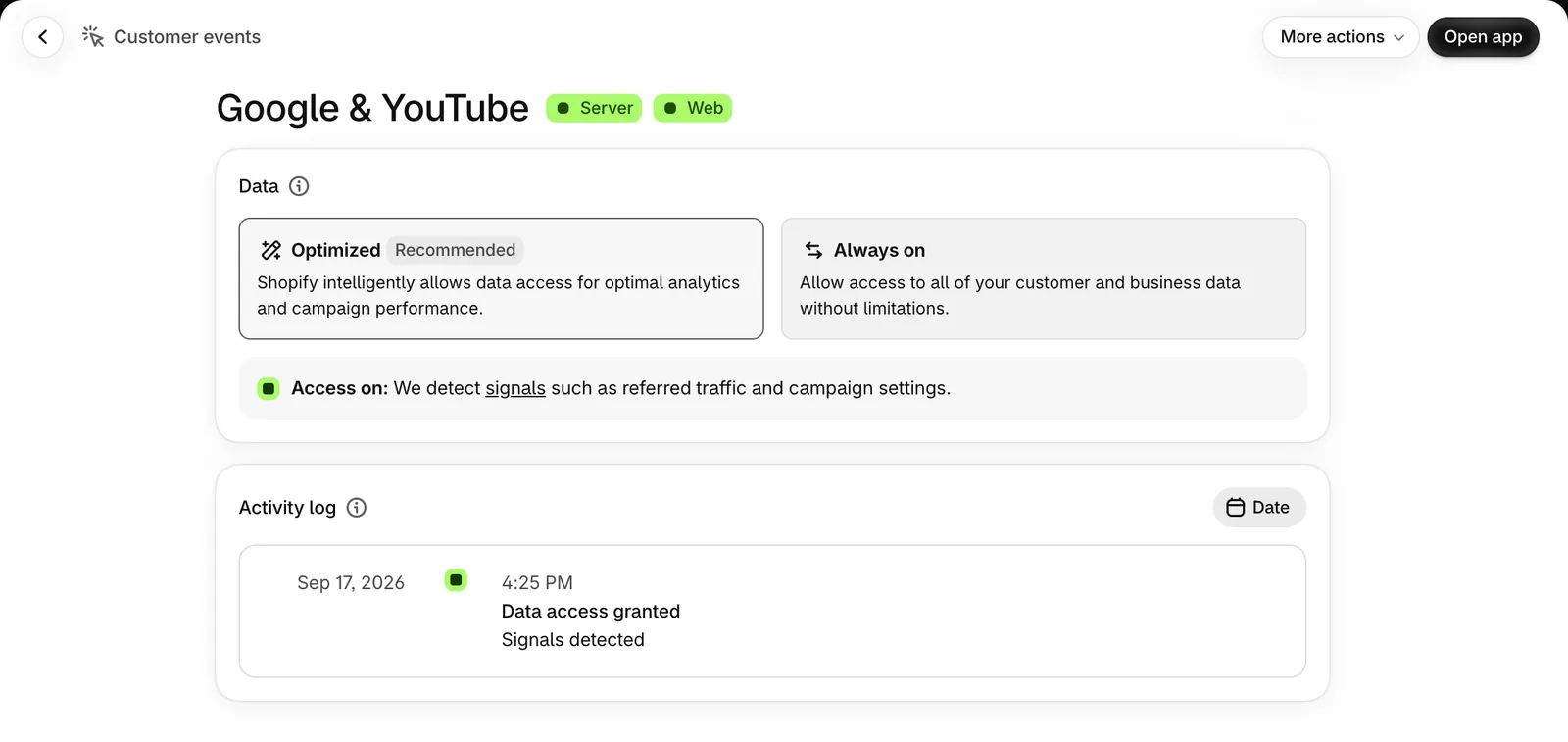
This is a critical detail for your Google Ads link: if you set up conversion tracking years ago with a gtag or conversion tag pasted by hand into the "Additional Scripts" field, that code was switched off on non-Plus stores on August 26, 2026, and if your conversion count dropped on that date, this is very likely the reason. Even if the Google Ads dashboard seems to keep receiving data, if the source is no longer Shopify's official "Google & YouTube" app, what happens to that code after the migration becomes uncertain.
A Risk to Avoid: Do not put off the check on the assumption that "my campaign still shows data, so there is no problem". On a store that has not moved to the Web Pixels API, tracking code can be switched off silently on the migration date. The gap is usually noticed weeks later, when conversion data suddenly drops, and by then the data lost in the meantime does not come back.
The practical fix is to run your conversion tracking not through a manual script but through the pixel of Shopify's official "Google & YouTube" app, or through a custom Web Pixel under Settings → Customer events; both methods keep working with the new system. We covered the overall scope and timeline of this migration in our article on Checkout Extensibility support, and the details of checkout customization specific to Shopify Plus in our Shopify Plus Checkout Extension article.
Setting Up Accurate Conversion Tracking and Event Testing
The most critical step people skip once the link is complete is proving, with a real test order, that conversion data flows correctly. A campaign launched without this verification can spend weeks optimizing on wrong data.
The 4 Core Events You Need to Test
In Google's standard ecommerce event structure, four events represent the critical points of the customer journey: view_item (product page view), add_to_cart (adding to cart), begin_checkout (entering checkout) and purchase (completed order). Confirming only that the "purchase" event works, without testing each of the four, is not enough; an event lost in the middle of the funnel leaves your remarketing lists and the learning data for Performance Max incomplete.

The test process is simple: place a real test order, then check under Goals → Conversions → Summary in the Google Ads dashboard that the order was recorded with the correct value and the correct timing. We also recommend turning on Enhanced Conversions at this stage; once you switch on "Enhanced conversions" in your Google Ads settings and accept the customer data terms, hashed customer data (email, phone) improves the accuracy of conversion matching.
Avoid Duplicate Conversions
The most common mistake is tracking the same order through more than one method at the same time (for example, Shopify's official app plus a separately installed Google Tag Manager tag). In that case a single sale is counted twice in the Google Ads dashboard, and ROAS looks better than it really is.
The most reliable way to prevent this is to use the Shopify order number as the transaction ID in your conversion tag; when Google receives the same transaction ID more than once, it deduplicates automatically. If more than one tracking method (for example, both the native app and GTM) is active at the same time, you need to choose only one as the primary source and switch off the other. Leaving both on, in the mistaken belief that "more data is better", damages data quality.
Consent Mode v2 and KVKK Compliance
Consent Mode v2 is Google's own requirement and applies to traffic from the European Economic Area (EU + Iceland, Liechtenstein, Norway). It became mandatory from March 2024, and from July 21, 2025, Google began actively switching off advertising features (remarketing lists, conversion modeling, smart bidding) on EEA traffic for accounts that do not implement it. For UK traffic a consent signal is recommended, but the same enforcement does not apply. For a store that sells only to Turkey, it is not directly mandatory; but for brands that also sell to the EU through Shopify Markets, it is no longer an optional improvement. It is a condition for keeping things working.
Technically, Consent Mode v2 adds two new parameters to the previous version: ads_user_data (controls whether Google may use hashed customer data for advertising) and ads_personalization (controls whether personalized ads may be shown). On the Shopify side, the way to pass these signals correctly is the store's own Customer Privacy API; you need to make sure that your cookie consent tool (CMP) calls the setTrackingConsent() function correctly through this API.
For stores in Turkey, this is a layer that is separate from, but related to, the general cookie and data processing consent obligation under KVKK (Turkey's data protection law): KVKK requires a consent mechanism for Turkish users' data, while Consent Mode v2 is a signal standard that Google specifically requires for EEA traffic. We covered how we set up server-side tracking and cookie management in our article on Server-Side Tracking and Consent/Cookie Management, and the KVKK-specific compliance steps separately in our Shopify KVKK Integration article.
How Do You Measure the Real ROAS of Your Google Ads Campaigns?
Even if all the steps above (event testing, deduplication, Consent Mode v2) are set up correctly, the conversion value shown in the Google Ads dashboard and the real order revenue recorded by Shopify still sometimes fail to match. This is usually down to a difference in attribution models (the gap between Google's own attribution window and actual buying behavior) or to several channels (Google + Meta + TikTok) each claiming the same sale for themselves.

To resolve this uncertainty, we use Peakmerce, the AI-powered ad analytics and ROAS tracking assistant we built ourselves. Peakmerce combines Google Ads, Meta Ads and TikTok Ads data directly with Shopify's real sales data and separates out each channel's real contribution (what actually happened in Shopify, not what the platform reports itself). This makes the gap visible between a campaign that "looks like it is going well" and one that actually brings in profit.
If you need to turn this multi-channel visibility into a regular report for your team or management, our SEO Reporting and Performance Tracking service combines your Google Ads data with your organic performance data in a single, regular reporting flow. That lets you monitor all of your store's acquisition channels at once, not just advertising.
The Google Ads Link Is Different from the GA4 Link
Because the names "Google Ads" and "Google Analytics (GA4)" are similar, they are often confused, but what you connect and why are completely different. The Google Ads link is there to report your ad spend and conversions to Google's advertising system; the GA4 link is there to analyze all user behavior in your store (whether it comes from ads or not). In practice the two are usually set up together and share the same core event data (such as purchase and add_to_cart), but that data is sent to two different accounts for two different purposes.
We covered how we set up the GA4 link step by step separately in our Shopify Google Analytics (GA4) Link article; this article focuses only on the Google Ads and GMC side.
Linking a Meta/Facebook Ad Account Is a Separate Topic
Google Ads and Meta (Facebook/Instagram) ads are two separate channels that most brands run together, but their linking processes, data structures and platform-specific requirements (such as Meta's own Conversions API) differ. Rather than skimming both topics in a single article, we covered the Meta/Facebook link in full depth in a separate article.
You can find the steps for connecting your Meta Business account to Shopify, using an existing account or creating one from scratch in our Shopify Meta (Facebook/Instagram) Link article.
Common Mistakes When Linking Google Ads
In the account audits we run, four mistakes come up far more often than the rest:
- Launching campaigns before the feed is approved: A Shopping campaign launched before GMC approval is complete can't show any products; the campaign sits idle and its learning period is delayed.
- Putting the entire budget into Performance Max: On a new account with no learning data, putting the whole budget into a single automated campaign hands control entirely to the algorithm.
- Going live without verifying conversion tracking: The core topic of this article; a campaign launched without a test order spends weeks optimizing on wrong data.
- Not replacing the old "Additional Scripts" tracking code with new tracking: On non-Plus stores, this code was silently switched off on August 26, 2026; if the official app pixel has not been set up in its place, conversion data disappears without anyone noticing.
FAQ
Does it cost anything to link Shopify to Google Ads? Installing the app is free; the only cost comes from the ad budget you set.
Why is my product feed being rejected in GMC? The most common reasons are missing GTIN/MPN, a price mismatch, an insufficient return/shipping policy, or SSL/checkout problems. Check these four, then resubmit the feed.
Should I choose Performance Max or Standard Shopping? If you have a large catalog and want little manual management, Performance Max is the better fit; if you want direct budget control at product level, Standard Shopping suits you better.
How do I know my conversion data is accurate? Place a real test order and check under Goals → Conversions → Summary in Google Ads that the order was recorded with the correct value. You also need to verify each of the four events separately: view_item, add_to_cart, begin_checkout and purchase.
Does the 2026 Checkout Extensibility migration affect my Google Ads tracking? Yes, if you set up your conversion tracking with code added by hand to the "Additional Scripts" field. On non-Plus stores, the old code was switched off on August 26, 2026; you need to run tracking through the official app pixel or a Web Pixel.
Is Consent Mode v2 only needed for stores that sell to the EU? The scope Google makes mandatory is traffic from the European Economic Area (EU + Iceland, Liechtenstein, Norway); for the UK, consent is recommended but the same enforcement does not apply. If you sell only to Turkey, it is not directly mandatory. But if you also sell to the EU through Shopify Markets, it is now a condition for your advertising features to keep working.
Conclusion
Linking Shopify to Google Ads is technically a short step; the real work starts after the link. A campaign launched without verifying every layer, from GMC approval to event testing and from Consent Mode v2 to the 2026 checkout migration, may appear to be working but runs the risk of being optimized on wrong data.
If you would like us to manage this process end to end, take a look at our Google Ads Management and Conversion Optimization service; if you want regular reporting on campaign results alongside organic performance, see our SEO Reporting and Performance Tracking service. To compare your real ROAS across channels, you can also explore Peakmerce. The Google Ads link is part of the marketing and advertising category of integrations your store can connect; we cover other integration categories such as shipping, ERP and marketplaces separately in our Shopify Integrations guide. For stores that want to set up the Google Ads link within a single, consistent tracking architecture alongside GA4, Merchant Center and their store data, our Shopify integration solutions service takes on that setup directly.