
Shopify batch product creation means uploading hundreds of products in one go instead of one by one, using one of three methods. Matrixify works with Excel or Google Sheets for recurring updates, Shopify's native CSV Import/Export suits one-time or simple uploads, and the Shopify Admin GraphQL API keeps products synced with an ERP or supplier system.
If you want to grow your Shopify store quickly and add more products, batch product creation can make the job much easier. Instead of adding hundreds of products by hand one at a time, choosing a bulk upload method that suits the size of your store and your technical capacity saves time and reduces the margin for error.
Which Method Should You Use When?
All three methods aim for the same result (adding a large number of products quickly), but they differ in technical requirements and flexibility.
Batch Product Creation with Matrixify
Matrixify is an app that lets you quickly import large product lists into your Shopify store from Excel or Google Sheets for batch product creation. Its user-friendly interface offers a workflow you can reuse again and again, both for adding products and for bulk-updating existing products (price, stock, description).

Using CSV Import/Export
Shopify's own native CSV Import/Export feature lets you add or update products without a third-party app. You can turn your product information into a CSV file and import it quickly, or export your existing catalog, edit it and upload it again.
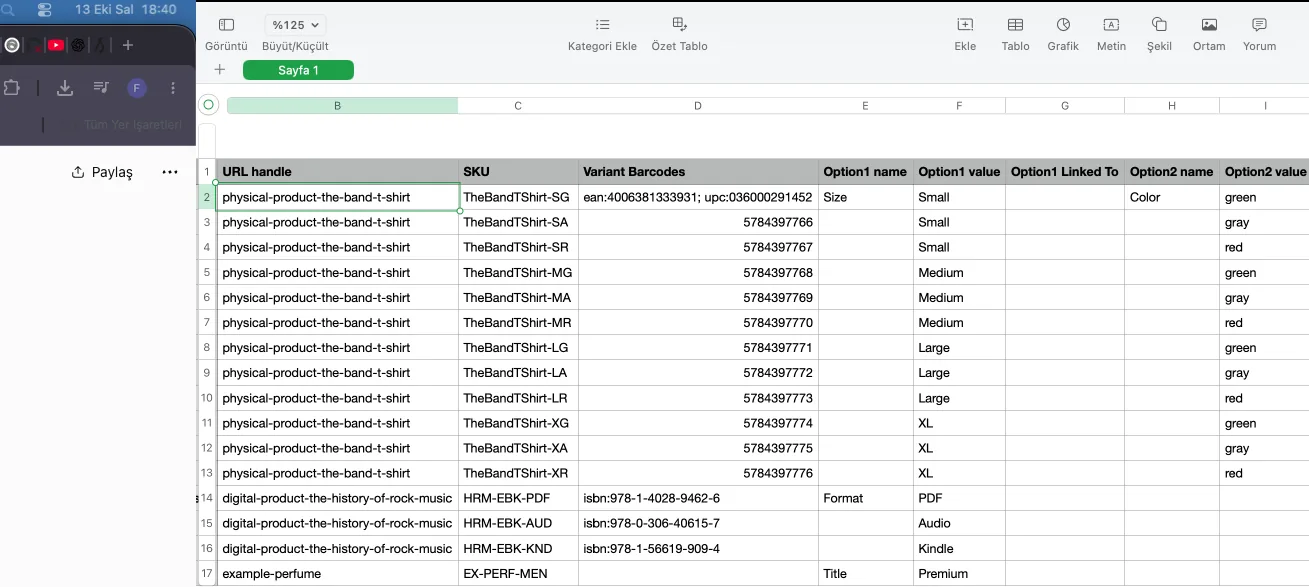
Critical Note: The most common mistake in CSV imports is matching variants (color, size) to the wrong row structure. Shopify's CSV template expects each variant on a separate row and the main product information only on the first row; if you don't follow this structure, variants may be imported as separate products. To fix size or number options that end up out of order on product pages after an import across your whole catalog, you can use variant reordering with Bulkly.
Automation with the Shopify Admin GraphQL API
The Shopify Admin GraphQL API is used to sync your store's products automatically from an ERP or supplier system; for large catalogs, the bulk operations feature is the preferred option. Unlike CSV or Matrixify, this method doesn't do a one-off upload; it sets up an integration that runs continuously, so when a price changes in the supplier catalog, the change is automatically reflected in Shopify.
After a Bulk Product Upload: Collections and Menu Structure
After uploading hundreds of products in bulk, organizing them into meaningful collections and a menu structure is a separate job: the bulk upload tool adds the products to the store but doesn't automatically place them in the right collection. To speed up this step, our Wizard app quickly turns bulk-uploaded products into a collection and menu structure.
What We Watch Out For in Bulk Product Uploads at Nodus Works
Uploading a large catalog without first checking data quality (consistent category naming, complete SKUs, the correct variant structure) creates messy data that is much harder to clean up afterwards. Testing on a small sample before the upload prevents the same error from being repeated across thousands of products.
For stores that want continuous sync with their ERP or supplier system, our Shopify integration solutions service builds this automation end to end through the Admin GraphQL API.
Frequently Asked Questions (FAQ)
What is batch product creation? It is a way of adding multiple products to your Shopify store at the same time. It involves uploading product information using a CSV file, an app such as Matrixify, or the API.
What is Matrixify and how do you use it? Matrixify is an app used to import large product lists into Shopify from Excel or Google Sheets. It lets you edit product information, import it and update it in bulk.
How do you add products with a CSV file? Product information is arranged in a format that matches Shopify's CSV template and then uploaded. Matching variants (color, size) to the correct row structure is the most common point of failure.
When should you choose the Shopify Admin GraphQL API? Choose the Admin GraphQL API when you need continuous, automatic sync with an ERP or supplier system rather than a one-off upload. CSV and Matrixify are better suited to one-off or periodic bulk operations.
Do bulk-uploaded products land in collections automatically? Partly. Automated collections pick up products that match conditions from the CSV, such as tag, product type, or vendor, on their own after the import; manual collections and the menu structure are still organized by hand. This step has to be done separately, or with an app that speeds it up.
Conclusion
Batch product creation on Shopify can be done with three different methods (Matrixify, native CSV, Admin GraphQL API), depending on the size of the store and its technical needs. Checking data quality before the upload and planning the collection and menu structure after it are two critical steps of the process that are often overlooked.
If you want to set up continuous sync with your ERP or supplier system, you can turn to our integration service.