Shopify's unlisted product status, introduced in October 2025, keeps a product active and purchasable but hides it from search results, collections and product recommendations, so shoppers reach it only through a direct link. Unlike a draft, it can still be added to the cart and bought. Shopify adds noindex to these pages automatically; the status suits B2B pricing, soft launches and targeted campaigns.
What Is the Shopify Unlisted Product Status?
The Shopify unlisted product status is a visibility setting that keeps a product active in your store while hiding it from search results, collection pages and product recommendations, so it can only be reached through a direct link. Shopify started supporting this status in the Admin GraphQL API in October 2025. This feature is especially useful for B2B price lists and soft launches.
Shopify's standard visibility mechanism surfaces a product through three channels: search, collections and the recommendation engine. When a product is marked "unlisted", all three channels are switched off, but the product does not become completely inaccessible the way a "draft" does. The product stays active: it can be added to the cart, purchased and taken through checkout. The only difference is that shoppers cannot stumble upon it without a link.
Important: Unlisted is a visibility choice, not a privacy or security measure. Anyone who knows the product URL can open the product; it provides no password protection and no access control based on customer groups. If you need real access restrictions (for example, prices that only approved dealers should see), unlisted on its own is not enough.
What Is the Difference Between Unlisted, Draft and Active?
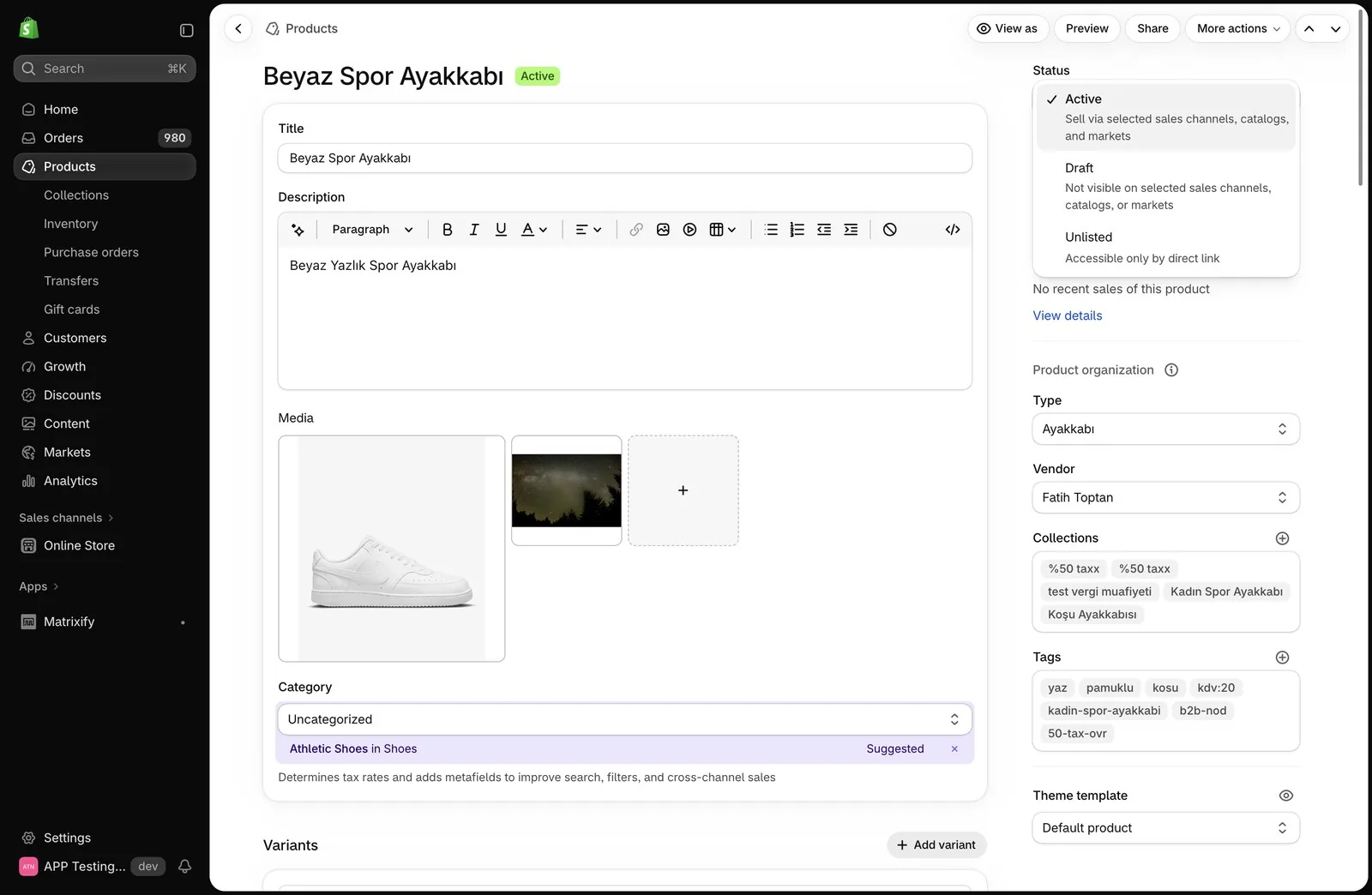
Each of the three statuses represents a different level of visibility: Active is fully visible, Draft does not appear anywhere in the store and cannot be sold, and Unlisted is active but not discoverable. This difference determines which status fits which business scenario.
In practice, the most common mistake is the "I'll just set the product I want to hide to draft" approach. A draft product can no longer be sold, so draft is the wrong choice for products that must stay on sale but should not be shown to everyone (for example, a product priced specifically for a dealer agreement). That scenario is exactly why unlisted exists.
How Do You Access Unlisted Products?
An unlisted product can be reached in three ways: a direct URL, a handle/ID/metafield reference in a Liquid template, and a Storefront API query. Standard navigation (the search box, collection filters, the "Related Products" widget) never returns this product; access always starts with a deliberate reference.

The simplest method is sharing the direct URL: anyone who knows the address store.com/products/product-handle can view the product, add it to the cart and buy it. On the developer side, a product(handle: "product-handle") query through the Storefront API returns an unlisted product just like any standard product. The API does not hide it from the others; it simply leaves it out of the collection and search endpoints. In Liquid templates, you can build a dedicated "loyal customer" or "dealer" page using {{ product.handle }} or a product reference embedded in a metafield. Because this page is not part of the store's normal navigation, the product remains undiscoverable.
Tip: Unlisted products are not included in the collection and search endpoints. For search engines, Shopify also automatically adds a noindex tag to the unlisted product page and removes the product from the sitemap, so you do not need to do anything extra.
When Should You Use Unlisted?
The unlisted status solves a real problem in four recurring business scenarios: B2B pricing, soft launches, targeted campaigns, and test or custom-made products. They all have one thing in common: the product must be ready to sell, but it should not be visible to the general customer base.
B2B sales are the most common use case. If a store sells both retail and wholesale, products priced specifically for dealers are marked as unlisted and shared only through a private link sent to the dealer; retail customers never see these products in search results or on collection pages. For stores that want to set up a complete wholesale/B2B sales flow, our B2B and wholesale app configures dealer-specific pricing and product group management to work together with the unlisted logic.
Soft launches let you show a collection that has not been announced yet to a limited audience (influencers, press, a VIP customer list) as a preview. The product goes live and the checkout flow is tested, but general visitors cannot see it until launch day. In targeted campaigns, you create a discounted product page exclusively for a specific email segment or ad audience; visitors outside the campaign cannot reach that price by browsing the store, which keeps your pricing consistent. With test and custom-made products, a product that is still in development or being made to order can be tested in the real checkout flow, while it remains completely undiscoverable in the live store.
How Do You Create an Unlisted Product?
You can set the unlisted status from the Shopify admin: select the product on the Products page and use Unlist products, or change it in the status field on the product page. Bulk and automated operations use the Admin GraphQL API, which requires a developer to send API requests or an app that does this for you.

The steps work like this. First, the product is created as usual (in Active status). Next, the product is removed from listings with Unlist in the admin, or its status field is updated to UNLISTED with the productUpdate mutation in the Admin GraphQL API. Note down the product's handle (the product name part of the URL), because it will be the only way to reach the product. Prepare the link for the channel you will share it on (email, a WhatsApp message, a dedicated landing page). As the final step, test adding to cart and the checkout flow while the product is unlisted.
Important: If your store uses a third-party app for search or recommendations (such as Algolia or Klevu), that app's own product index may not automatically recognize Shopify's unlisted logic. Before switching to unlisted, you may need to exclude the product manually in that app's settings.
Because bulk and automated flows require API knowledge, stores without a technical team can implement this process without writing code through our Shopify integration solutions and custom app development service.
What to Watch Out for When Using Unlisted
Unlisted is misunderstood in three areas: security, reporting and link control. The first and most critical point is that unlisted controls visibility, not access; anyone who knows the URL can reach the product.

The second risk appears in reporting. Unlisted products keep showing up in sales reports just like normal products, which can cause confusion such as "this product has sales but no traffic". We recommend that your team marks unlisted products with a separate tag and filters them in reports. The third risk is the link spreading unintentionally: if an unlisted product link is accidentally shared on social media or on a public page, the product effectively becomes open to everyone. Shopify does not automatically detect or block this.
A Risk to Avoid: Selling the same product to different customer groups at different prices through unlisted pages (price discrimination) may run into consumer protection regulations in some markets. We recommend getting legal advice before setting up this model.
Where Do We Use Unlisted at Nodus Works?
In the Shopify projects we manage, we recommend the unlisted status most often for B2B pricing and limited-time campaign scenarios. The dealer network platform we built for Adell has product groups priced specifically for different dealer types (distributor, project partner, retail dealer). In setups like this, unlisted is the fastest way to separate a "public store" from a "closed dealer catalog" on a single Shopify instance, without building a separate B2B platform.
Another use we see in the field is the "first 24 hours exclusively for the email list" setup for limited-stock product launches. The product is published as unlisted and the direct link is shared in the email campaign; after 24 hours, the product is switched to active status and opened to the general store. It is a low-cost tactic that you can run on Shopify's own infrastructure, without installing an extra "hidden page" app.
The real value of unlisted is not that it is a new feature, but that it moves a need that used to require a separate app or custom code into Shopify's own infrastructure.
FAQ
Does an unlisted product show up when people search on Google? No. Shopify adds noindex and nofollow tags to the unlisted product page and removes the product from the sitemap (sitemap.xml), so the page stays out of search results even if the link is shared on another site.
Can an unlisted product be added to the cart and purchased? Yes. Unlisted does not deactivate the product the way "draft" does; the product stays active, can be added to the cart and goes through the normal checkout flow. The only difference is that it does not appear in search or on collection pages.
Is unlisted the same as a password-protected page? No. Unlisted is a visibility setting, not access control; anyone who knows the URL can reach the product. If you need real password or login protection, unlisted on its own is not enough and an additional access control mechanism has to be set up.
Can I set the unlisted status from the admin? Yes. You can select the product on the Products page and use Unlist products, or set it in the status field on the product page. For bulk and automated operations, you can use the Admin GraphQL API.
Are unlisted products visible in the Storefront API? Yes, they are returned when queried directly by handle or ID. The API does not treat this product differently from others; it simply leaves it out of discovery endpoints such as collections and search.
Conclusion
The Shopify unlisted product status is a visibility tool, available through the Admin GraphQL API since October 2025, that covers the need for "a product that is on sale but not visible to everyone" without installing a separate app. It is strongest in B2B pricing, soft launch and targeted campaign scenarios. Keep in mind, though, that it is not an access or security mechanism; it only turns off discoverability.
If you plan to set up dealer-specific pricing or a limited launch in your store, implementing unlisted with the right API integration requires technical knowledge. With our Shopify integration solutions and custom app development service, you can roll out this setup without writing code, and if you need a more comprehensive structure on the B2B side, you can take a look at our wholesale app.